Connecting Cisco Duo
Create the Trustle API application to automate privileged access management for Cisco Duo
Cisco Duo
Overview
This guide will help you configure a Duo Admin API application so Trustle can securely read your Duo users and groups.
What you'll need:
- Duo account with Owner or Administrator role
- Access to the Duo Admin Panel
Step 1: Log in to the Duo Admin Panel
Go to https://admin.duosecurity.com and sign in with your administrator account.
Step 2: Create an Admin API Application
- In the left sidebar, navigate to Applications
- Click Protect an Application
- Search for Admin API in the application list
- Click Protect next to Admin API
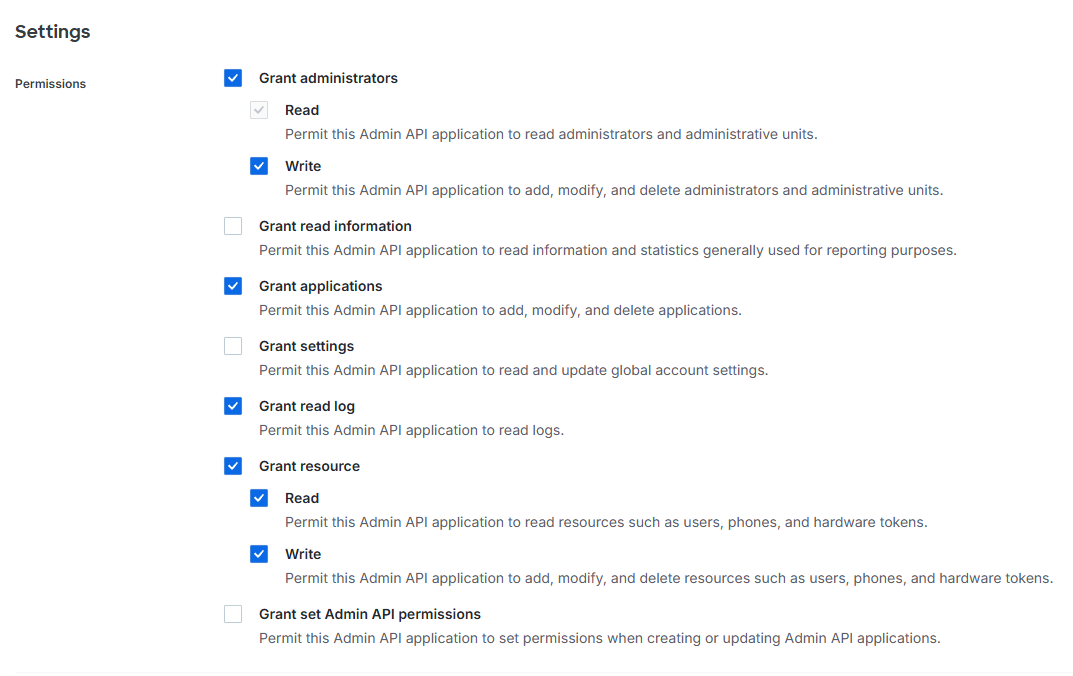
Step 3: Configure API Permissions
On the Admin API application page, grant the following permissions:
- Grant administrators — Read + Write
- Grant applications — top-level only
- Grant read log — top-level only
- Grant resource — Read + Write
Leave all write permissions unchecked — Trustle only needs read access.
Step 4: Collect Credentials
From the Admin API application details page, copy the following three values:
- Integration key (ikey): A string like DIXXXXXXXXXXXXXXXXXX
- Secret key (skey): A string like deadbeefdeadbeefdeadbeefdeadbeefdeadbeef
- API hostname: A string like api-XXXXXXXX.duosecurity.com
Important: Store the secret key securely — treat it like a password.
Step 5: Set up the Duo Integration in Trustle
- Navigate to the Connections page in Trustle from the left menu
- Under Identity Providers, find the Duo logo and choose Connect
- Fill in the connection form:
- Connection Name: Enter a descriptive name (e.g., "My Duo Connection")
- Integration Key: Paste the integration key from Step 4
- Secret Key: Paste the secret key from Step 4
- API Hostname: Paste the hostname from Step 4
- Click Test Connection
- Upon successfully testing the connection, click Save Connection