Connecting Okta
Grant Trustle API access to automate JIT and lifecycle management for Okta identities
Step 1: Create an App Integration
- From the Admin Console select Application and Applications again from the left menu
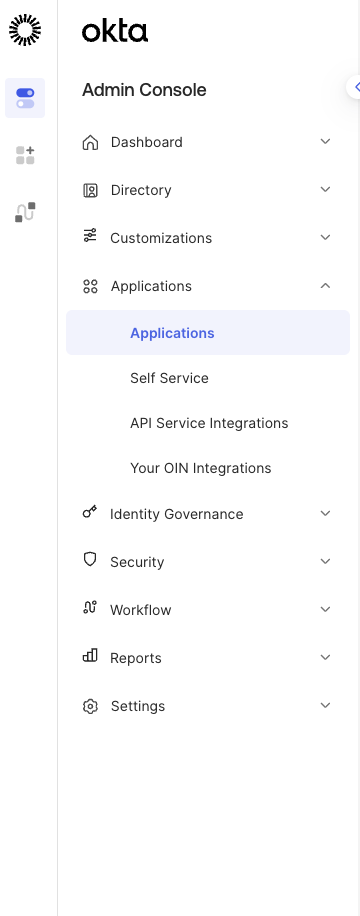
- The click the button Create App Integration

- Choose the API Services option and click Next
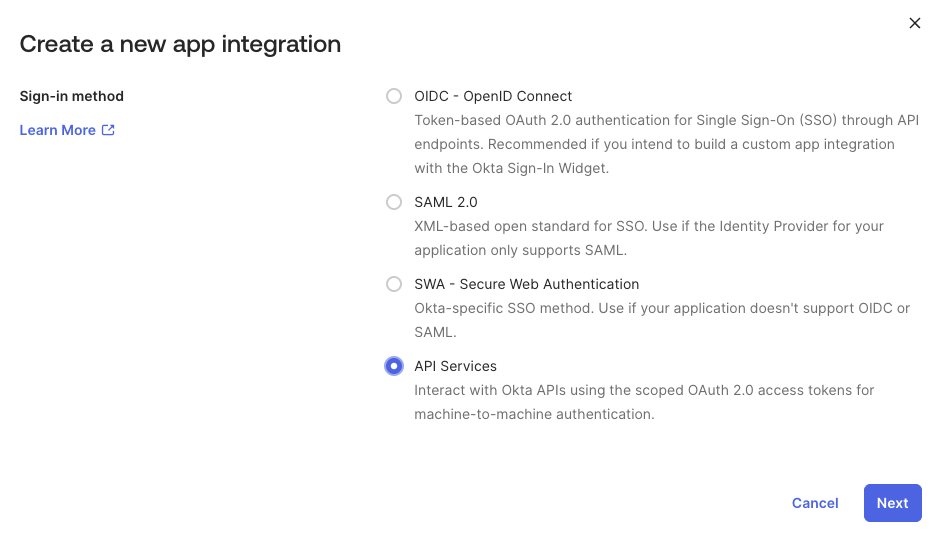
- Give the App Integration a Name and click Next
- After clicking next you will be on the App Integration configuration page
Step 2: Grant the application Okta API Scopes
- From the App Integration configuration page, select the Okta API Scopes tab
- Grant the following scopes to the application
- okta.groups.read
- okta.groups.manage
- okta.users.read
- okta.users.manage
- Return to the General tab and make a note of the Client ID, Client Secret and your Okta Domain which you can find in the url and typically in the form of organization.okta.com.
Step 3: Set up the Okta integration
- Navigate to the Connections page in Trustle from the left menu
- Under Identity Providers find the Okta logo and choose Connect
- Provide the Client ID, Secret and Organization URL from step 2.
- If you intend to use Okta as your Trustle Identity Provider, check the box Use as Identity Provider
- Click Test Connection
- Upon successfully testing the connection, click Save Connection