Connecting Salesforce
Configure an External Client App to automate JIT and lifecycle management for Salesforce users
Step 1: Create an App Integration
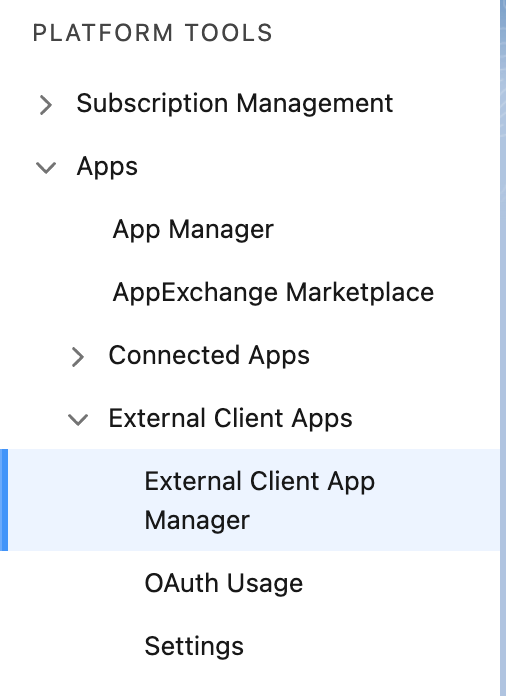
1.1 Go to Setup > Apps > External Client Apps > External Client App Manager
1.2 In the heading, click on “New external client app”

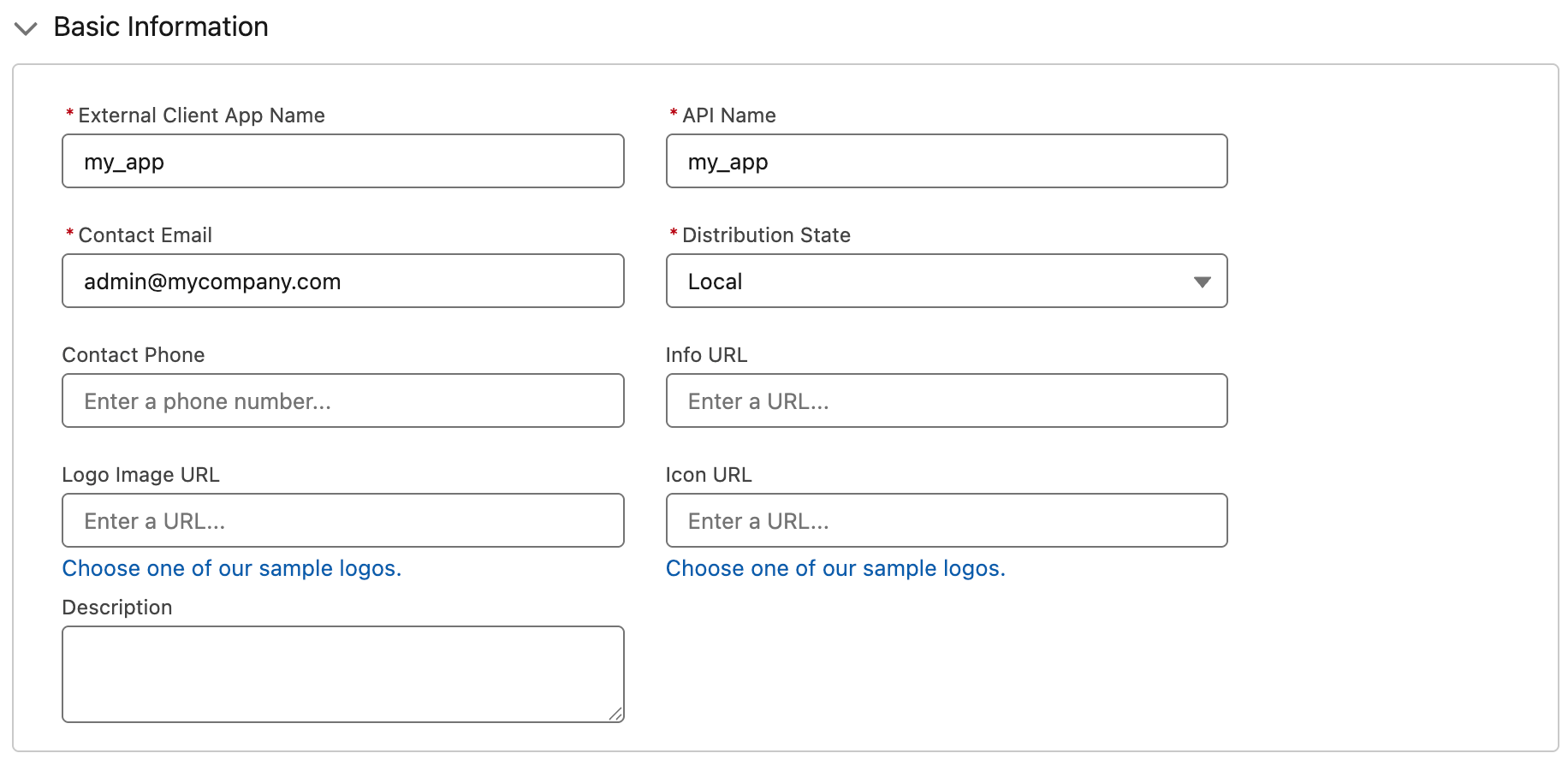
1.3 Fill required fields in the Basic Information
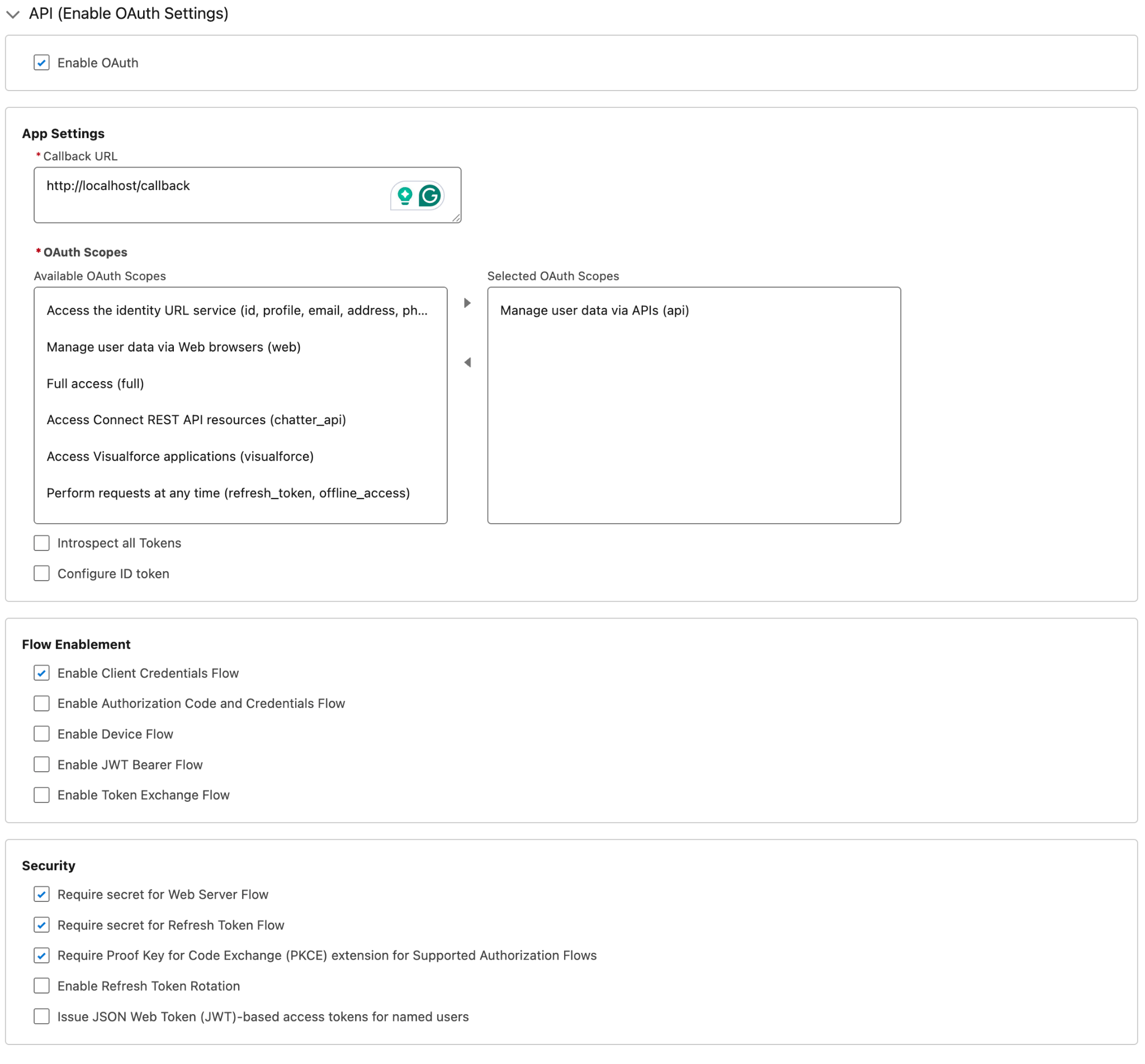
1.4 Enable OAuth Settings (API > Enable OAuth) and set the settings below:
- Callback URL: https://console.trustle.io/salesforce-callback (we don't use it, but it is required)
- OAuth Scopes: Manage user data via APIs (api)
- Flow Enablement: Enable Client Credentials Flow
- Security: Keep defaults
1.5 Then create it
Step 2: Create the Service Account Permission Set
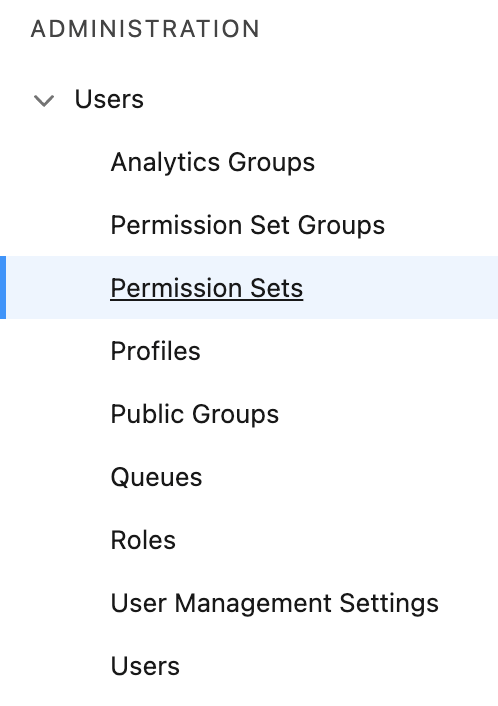
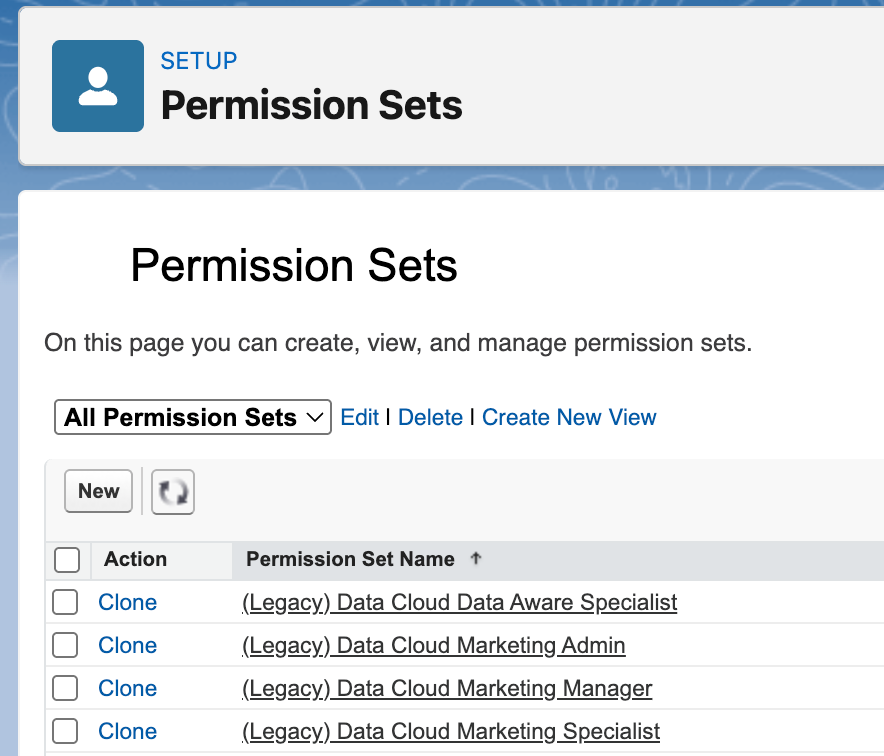
2.1 Go to the Permission Set panel (Administration > Users > Permission Set)
2.2. Click at the “New Button” (at table heading)
2.3 Give a name for the Trustle Integration Permission Set
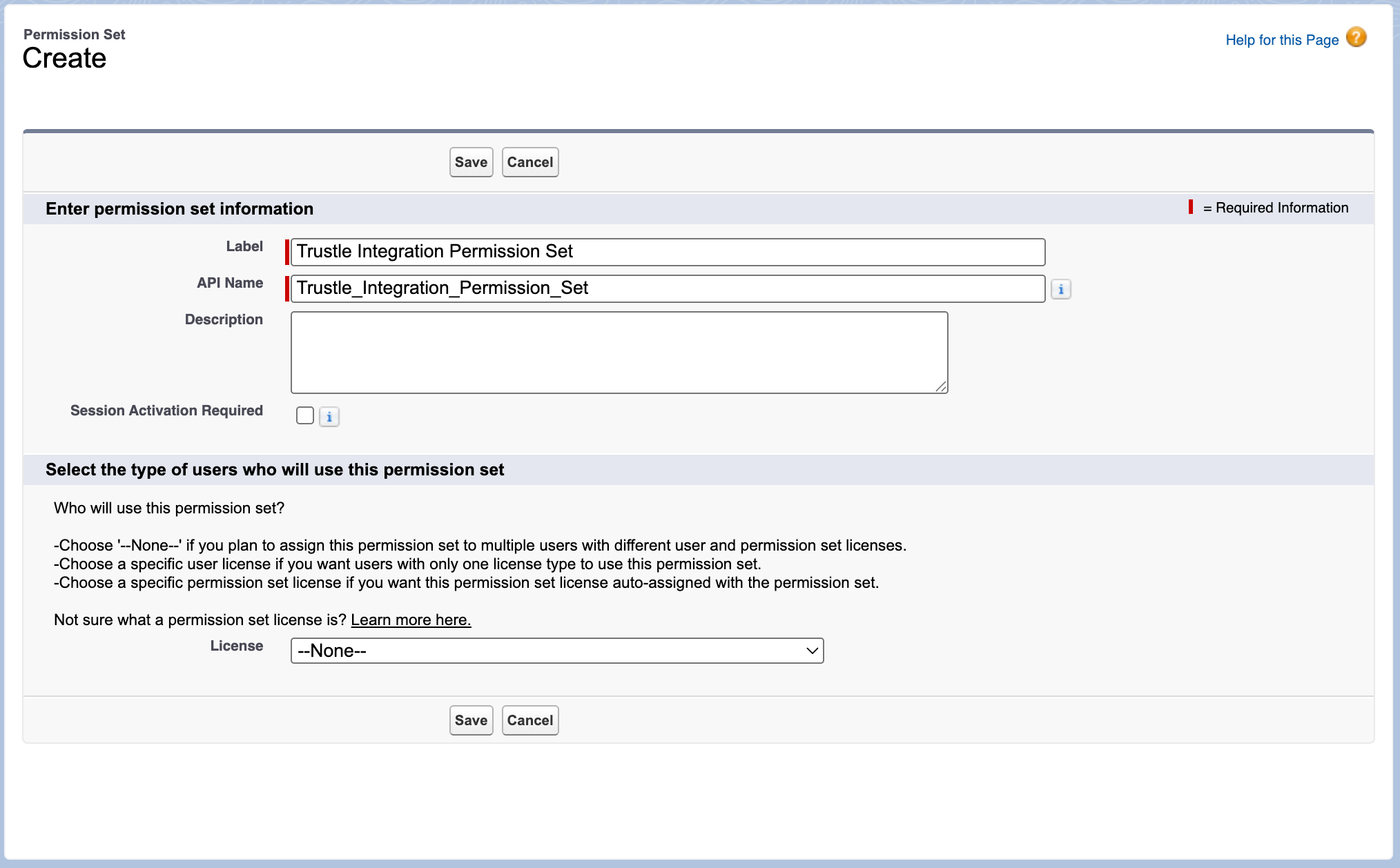
2.4 Save It
2.5 At the created Permission Set page, go to the System Permissions (Trustle Integration Permission Set > System > System Permissions)
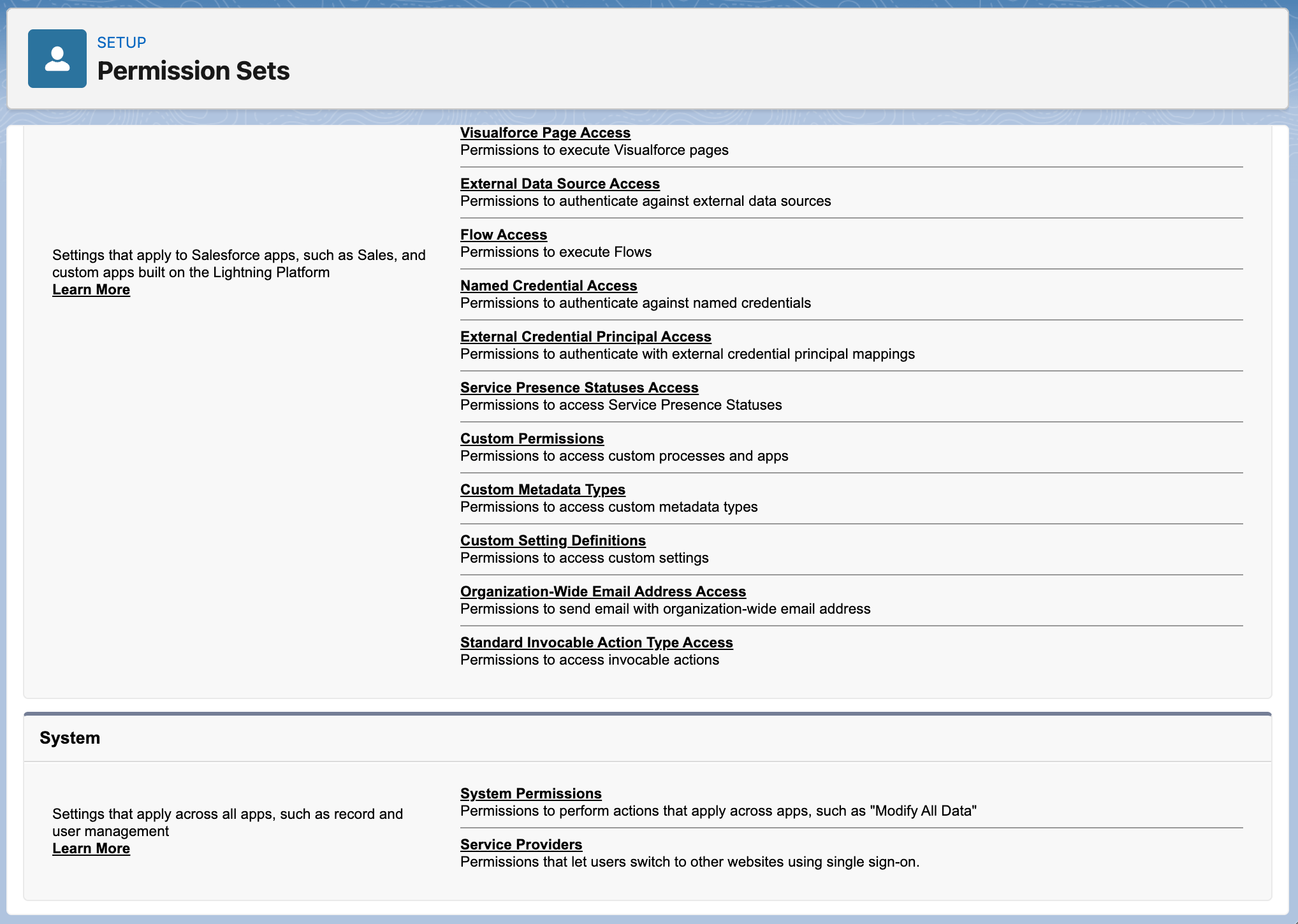
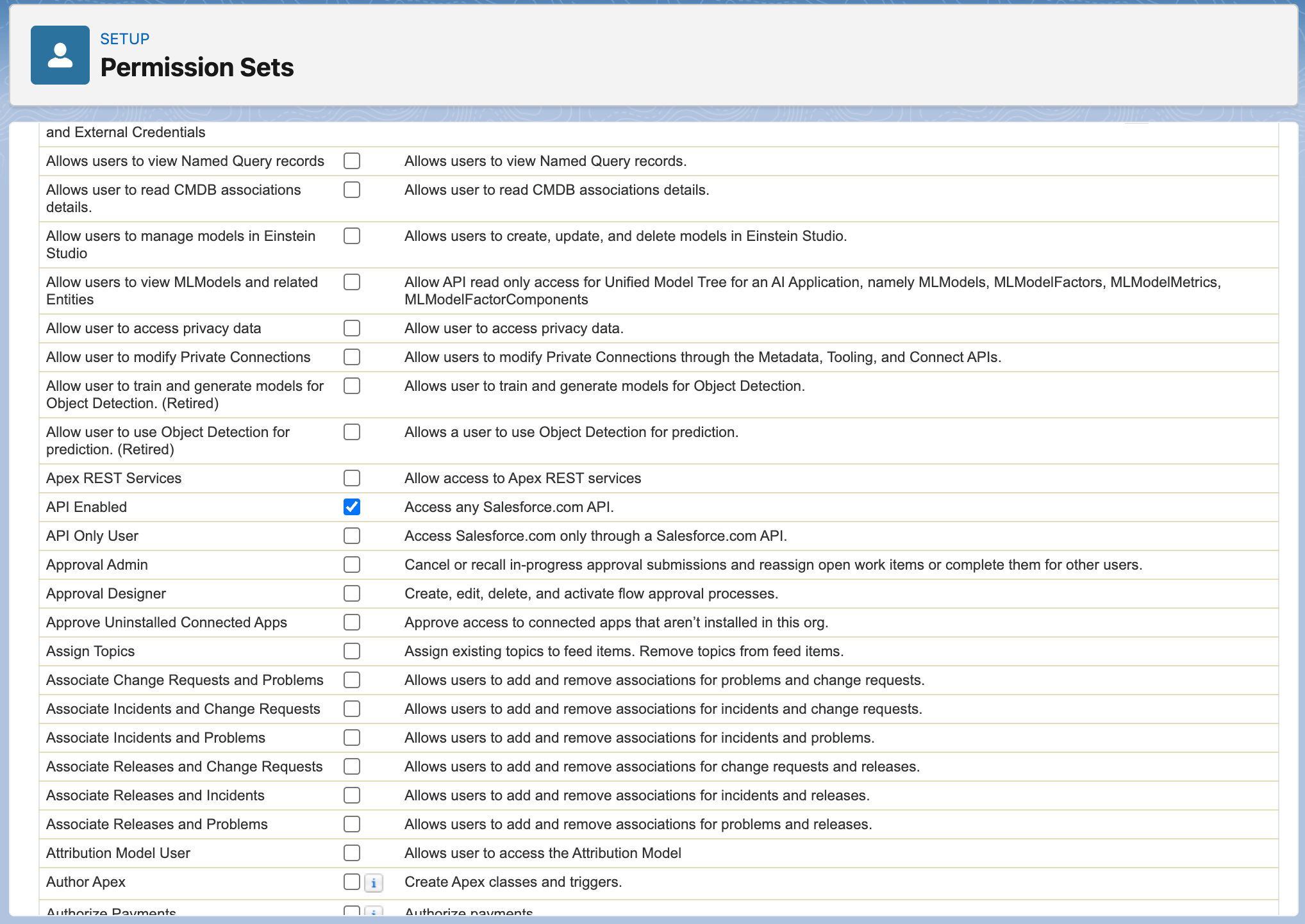
2.6 Edit it and set “Api Enabled”. Note that it will automatically enable other System Permissions)
2.7 Also set Manage Users (Users > Manage Users). Note that it will automatically enable other User permissions.
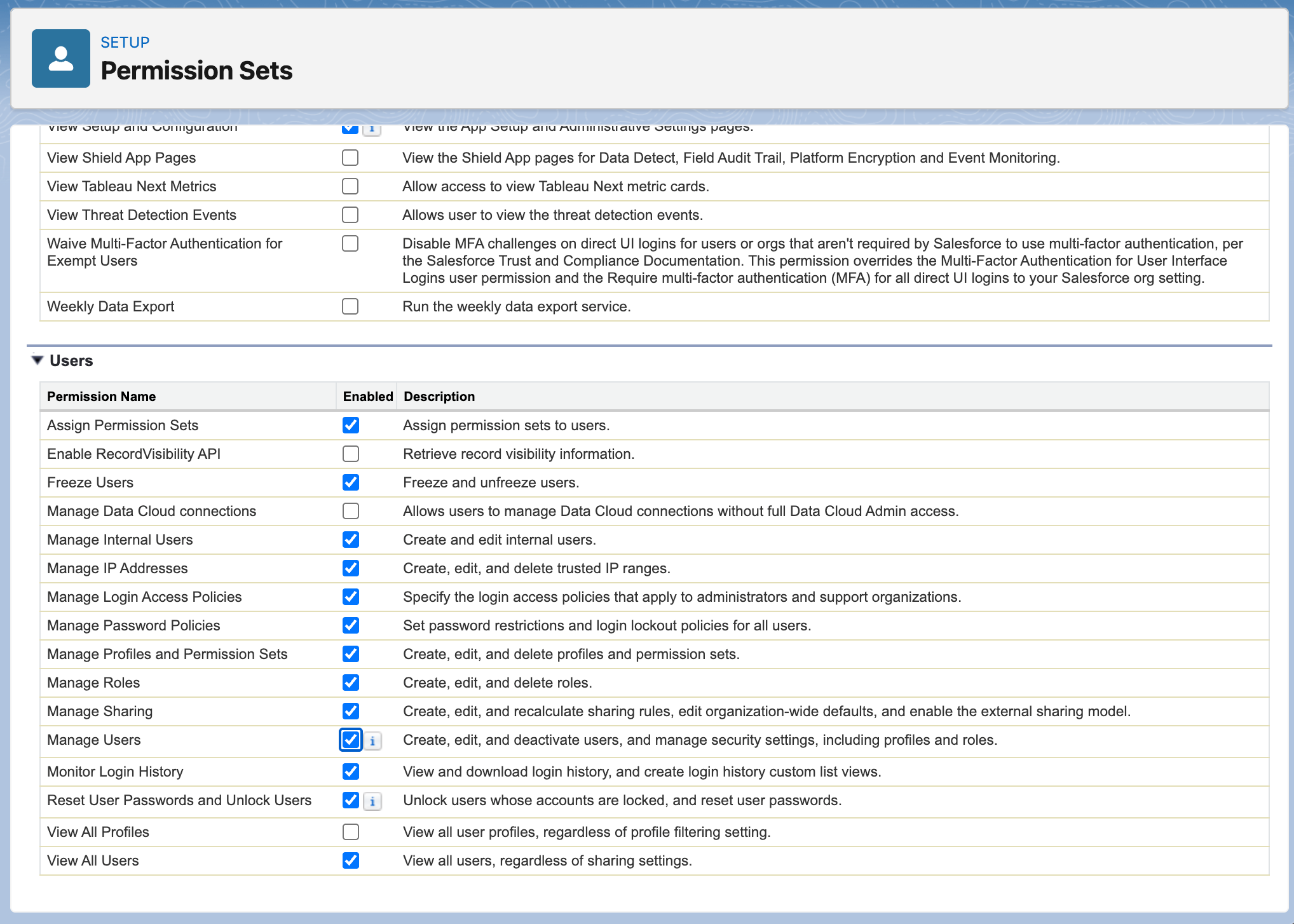
2.8. Save it.
Step 3: Create and Configure the Service Account
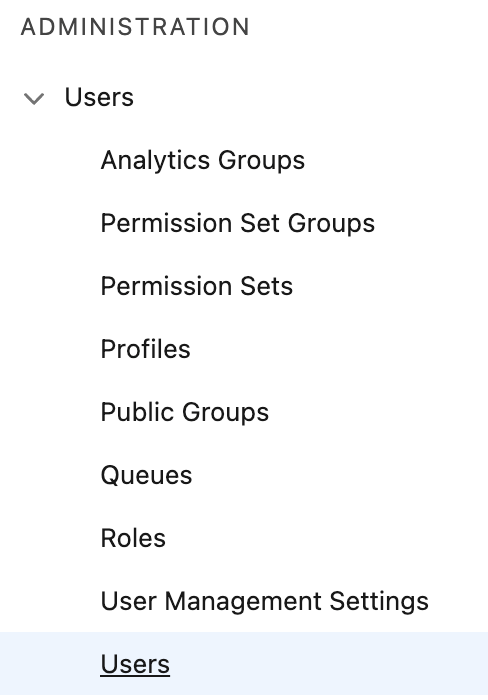
3.1 Go to the Users Administration Page (Administration > Users > Users)
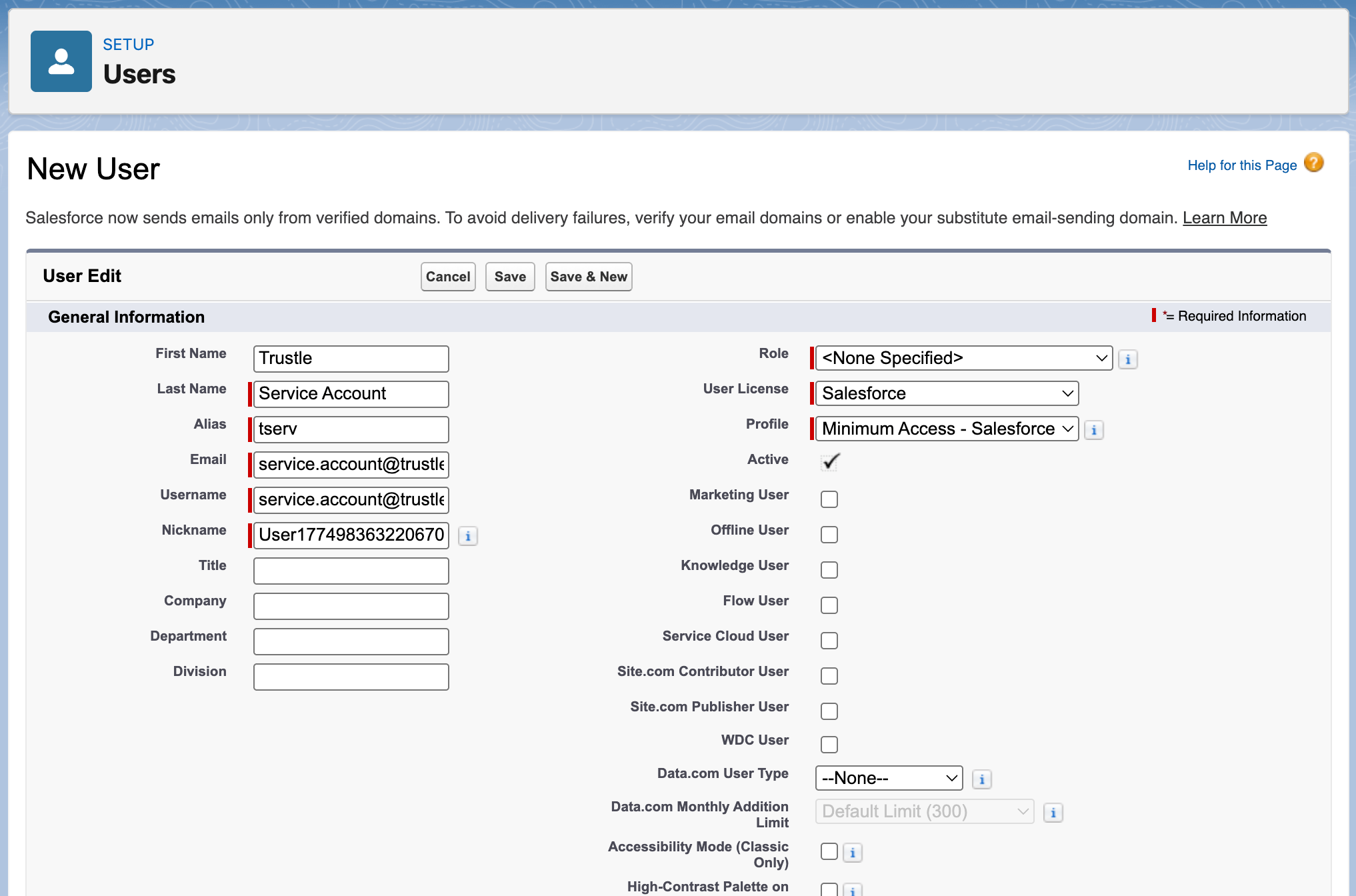
3.2 Create the Service Account User setting it to the Minimum Access - Salesforce profile (Salesforce User Licence)
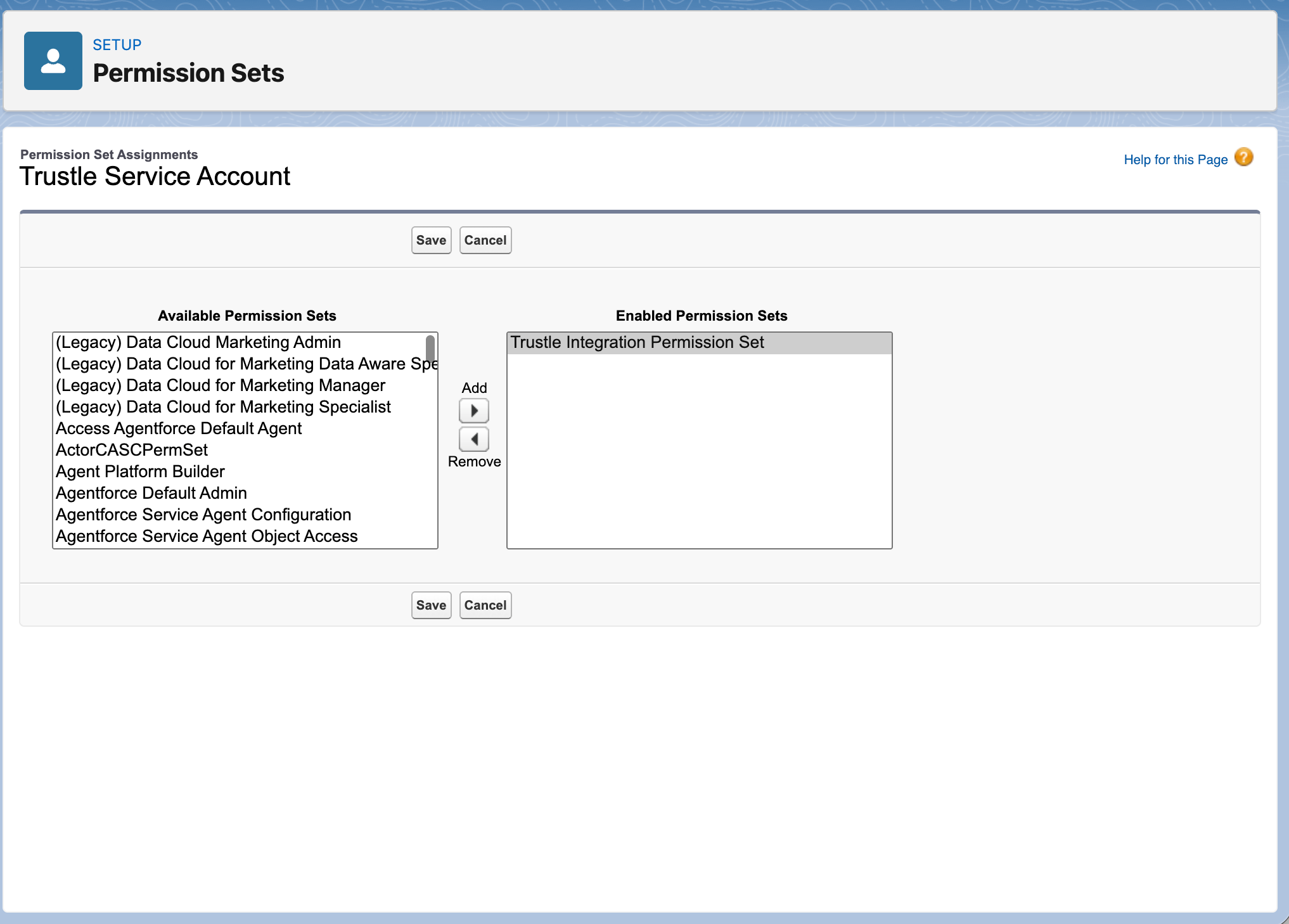
3.3 After created go to the Service Account User page and add the Permission Set (User > Permission Set Assignments > Edit Assignment)
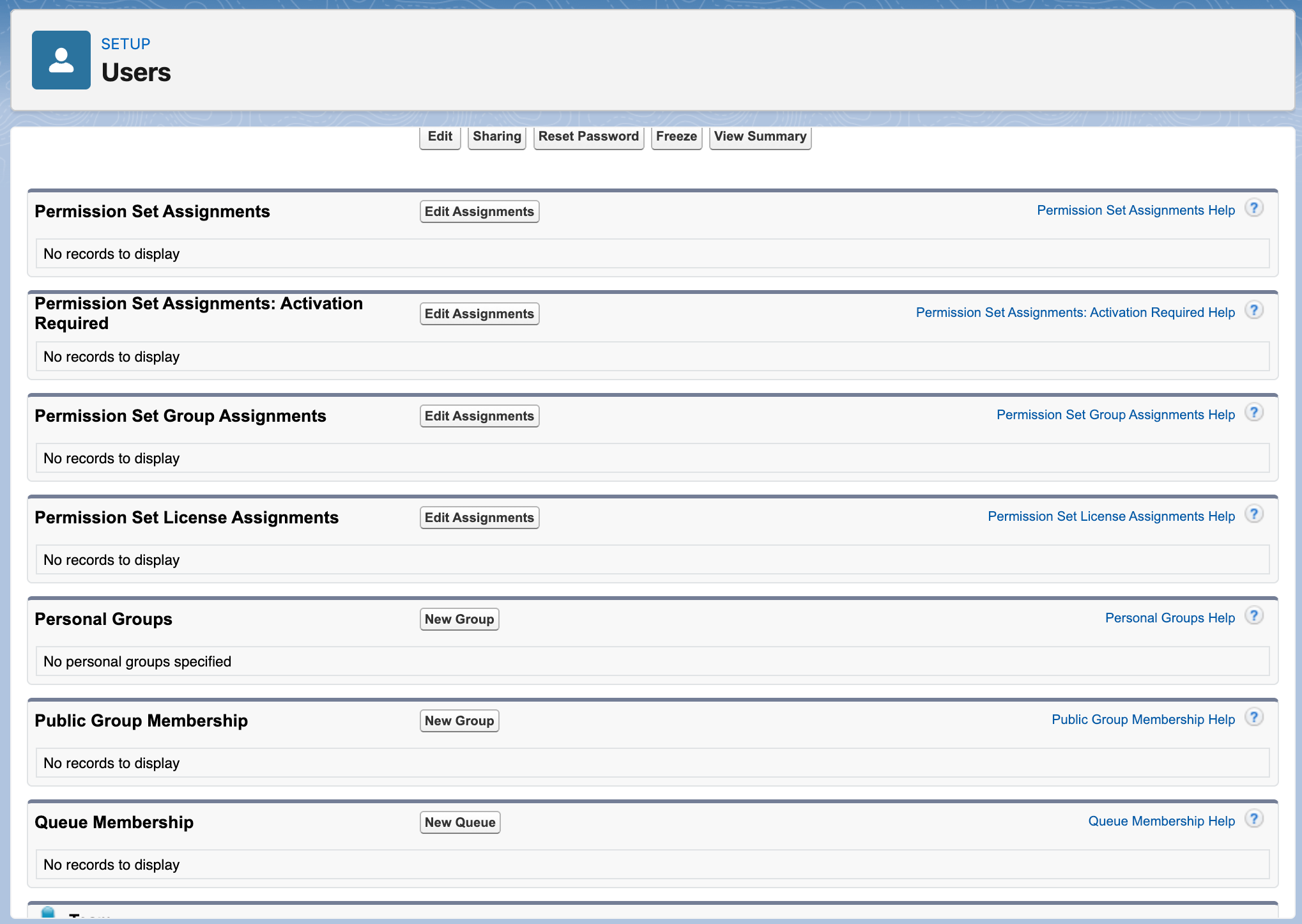
3.4 Add Trustle Permission Set and Save it.
Step 4: Update the External Client App Policies
4.1 Access the created External Client App page (after creation, you are redirected to it)
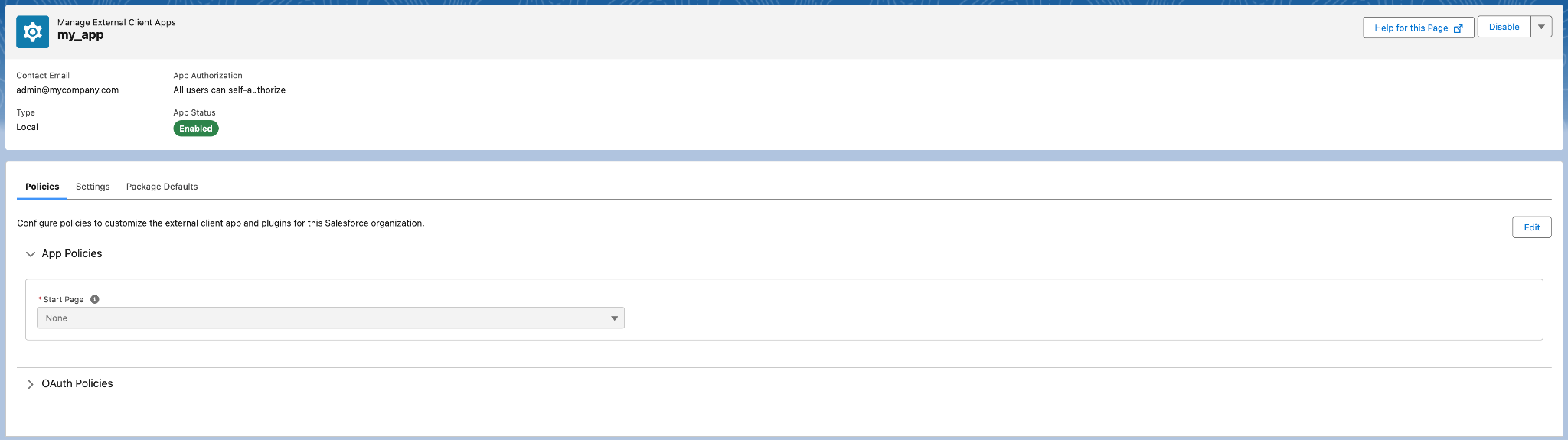
4.2 Click to edit the policies

4.3 Enable the Client Credentials Flow and set the Run As (Username) to the Trustle Service Account

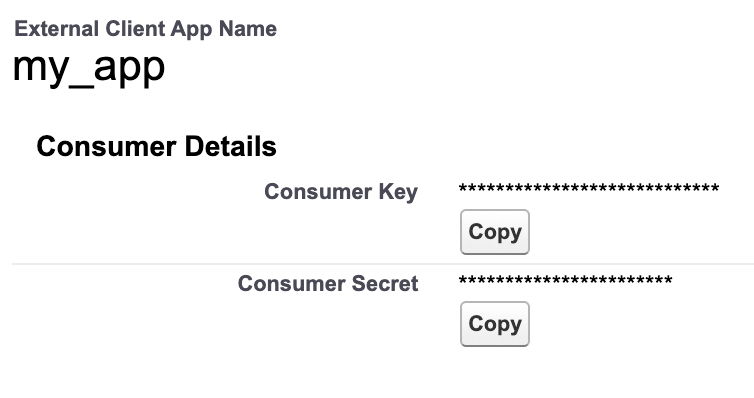
Step 5: Get the app credentials
5.1 On the External Client App page, go to Settings tab
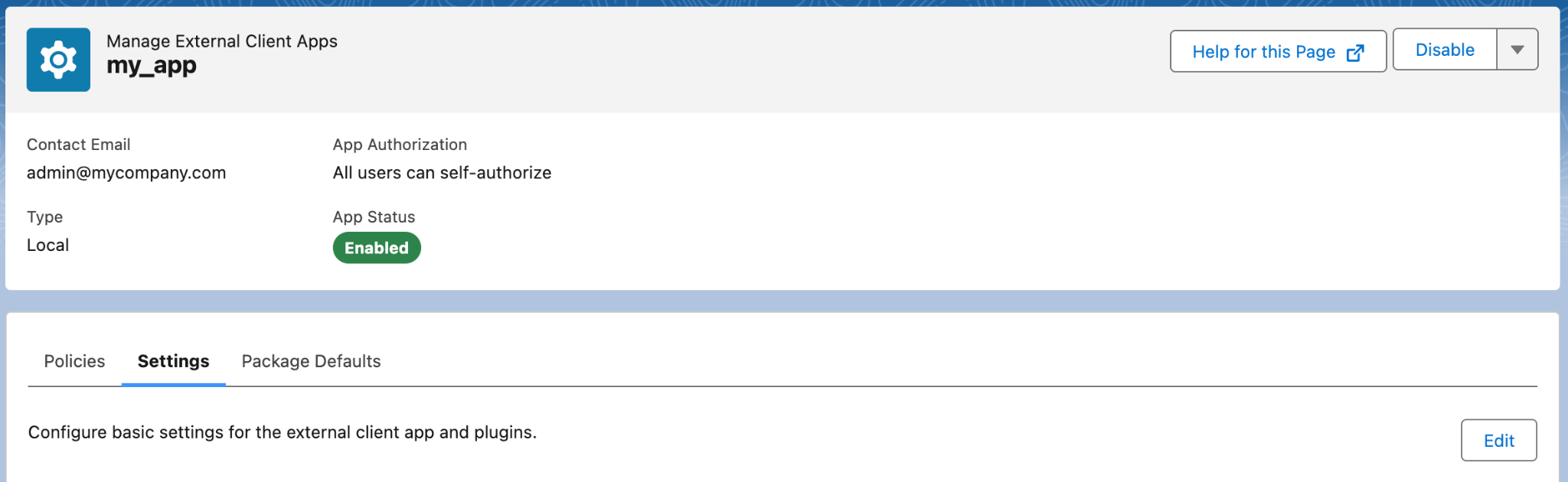
5.2 Open the OAuth Settings and click on the button to get the Consumer Key and Secret

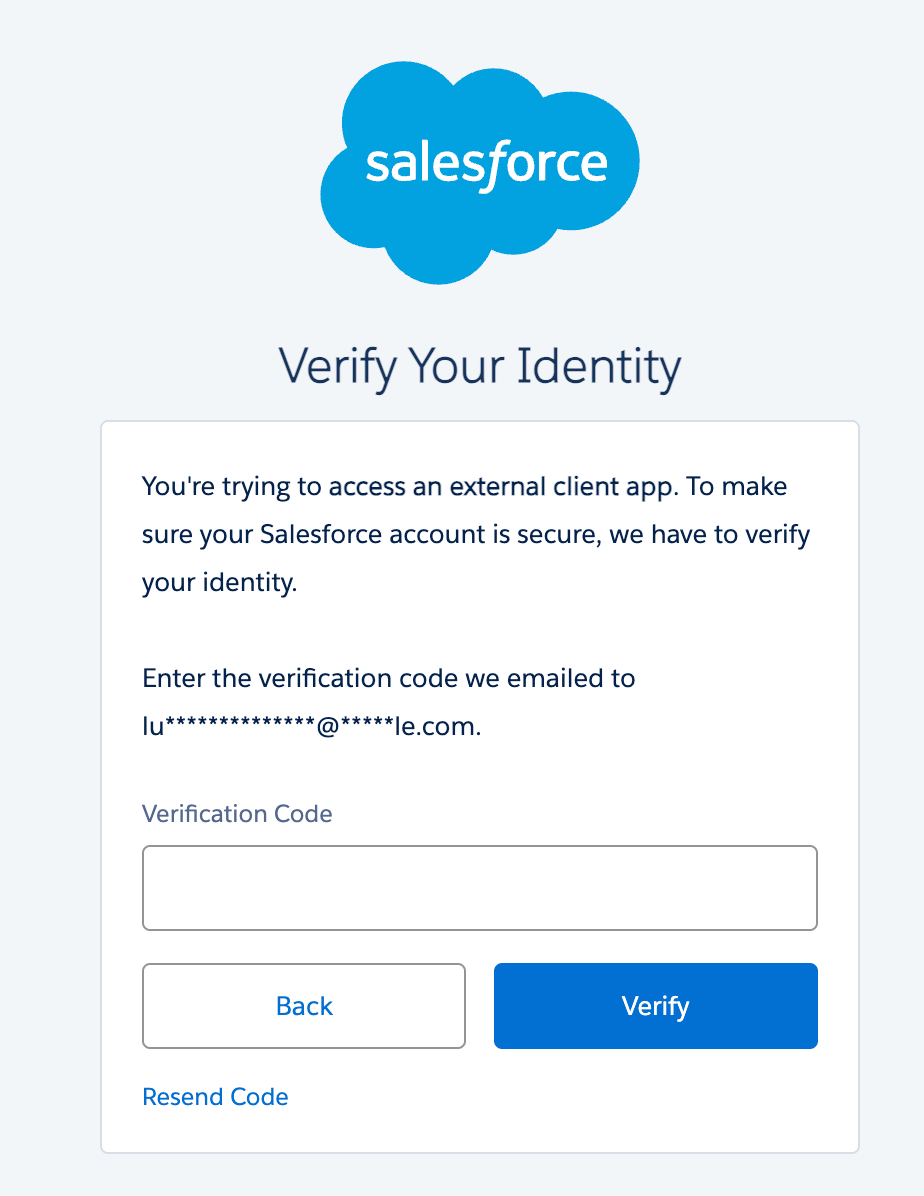
5.3 Verify your identity
5.4 Get the Consumer Key and Consumer Secret
Step 6: Get the company domain
6.1 Go to SetUp > Settings > My Domain
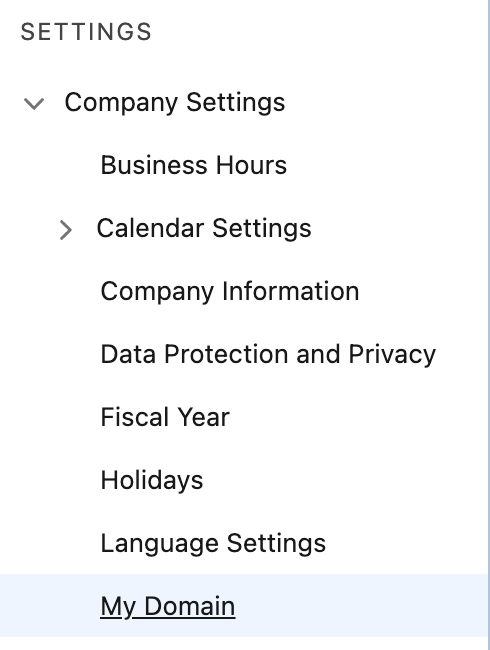
6.2 You will see the “My Domain Details”

6.3 The domain is the part before .salesforce.com of your “Current Domain URL”
Current My Domain URL: orgfarm-5a7dad8e67-dev-ed.develop.my.salesforce.com
Domain: orgfarm-5a7dad8e67-dev-ed.develop.my
Step 7: Set up the integration
7.1 Navigate to the Connections page in Trustle from the left menu
7.2 Under Identity Providers find the Salesforce logo and choose Connect
7.3 Provide the Credentials from step 3 and the Domain from step 4.
7.4 Click Test Connection
7.5 Upon successfully testing the connection, click Save Connection